Ever wondered how many words you’ve written in a Google Doc? You’re not alone. Whether you’re a student hitting an essay limit or a blogger tracking content length, knowing your word count matters.
The good news? Google Docs makes it surprisingly simple. In this guide, you’ll learn exactly how to turn on word count in Google Docs — including a live display that updates as you type.
Let’s dive in.
- Why Word Count Matters in Google Docs
- How to Turn On Word Count in Google Docs
- How to Check Word Count for a Selected Section?
- Word Count in Google Docs Mobile App
- Google Docs Word Count vs. Dedicated Word Count Tools
- Practical Tips for Using Word Count Effectively
- FAQ: Word Count in Google Docs
- How do I turn on word count in Google Docs?
- What is the keyboard shortcut for word count in Google Docs?
- Can I see the word count for just part of my document?
- Does Google Docs count words in headers and footnotes?
- Why is my word count not showing in Google Docs?
- Is there a free word count tool I can use outside of Google Docs?
- Conclusion
Why Word Count Matters in Google Docs
Word count isn’t just a number. It’s a writing tool.
For students, it ensures you meet assignment requirements. For writers and bloggers, it helps you hit your target length. For professionals, it keeps reports and proposals within scope.
Without tracking it, you’re essentially writing blind.
How to Turn On Word Count in Google Docs
Turning on word count in Google Docs takes less than 30 seconds. Here’s exactly how to do it.
Method 1: Using the Tools Menu
This is the most straightforward method. Follow these steps:
- Open your Google Doc in a browser.
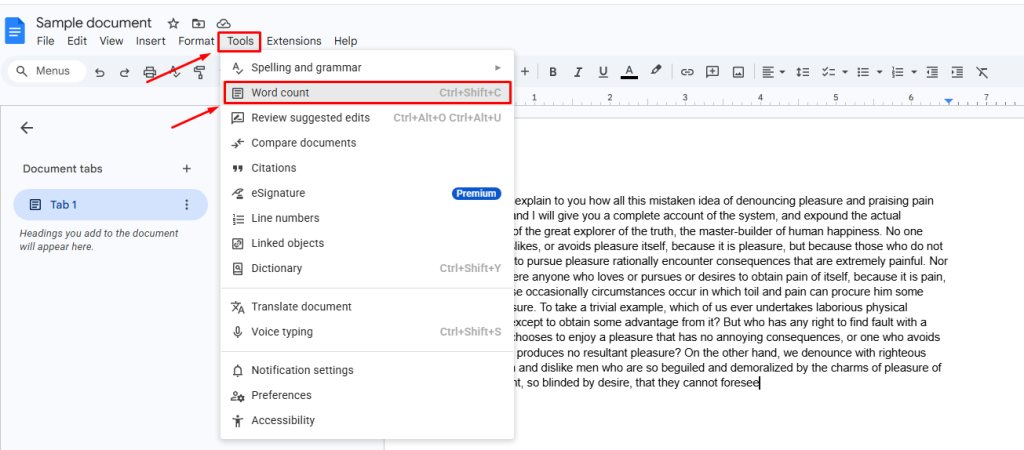
- Click on “Tools” in the top menu bar.
- Select “Word count” from the dropdown.
- A popup will appear showing your total word count, character count, and page count.
That’s it! Simple and fast.
Method 2: Use the Keyboard Shortcut
Prefer to keep your hands on the keyboard? There’s a shortcut for that.
- On Windows/Linux: Press
Ctrl + Shift + C - On Mac: Press
Cmd + Shift + C
This instantly opens the word count popup. No menu navigation needed.
Method 3: Display Word Count While Typing (Live Counter)
This is where it gets really useful. Google Docs lets you show a live word count at the bottom of your screen.
Here’s how to enable it:
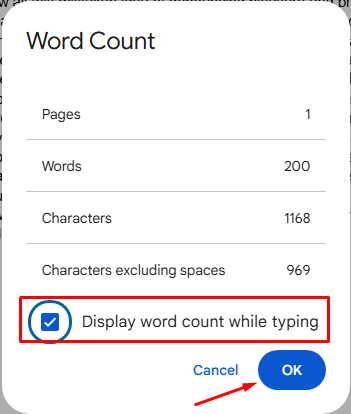
- Go to Tools → Word count.
- In the popup, check the box that says “Display word count while typing.”
- Click OK.
Now you’ll see a small word count tracker at the bottom-left corner of your document. It updates in real time as you write.
How to Check Word Count for a Selected Section?
Sometimes you don’t need the full document count. Maybe you want to check a specific paragraph or section.
Here’s how:
- Highlight the text you want to check.
- Press
Ctrl + Shift + C(orCmd + Shift + Con Mac). - The popup will show the word count for your selected text only.
This is incredibly useful for writers managing individual sections or blog intros.
Word Count in Google Docs Mobile App
Using Google Docs on your phone? You can still check your word count easily.
On Android:
- Tap the three-dot menu (⋮) in the top-right corner.
- Select “Word count” from the list.
On iOS (iPhone/iPad):
- Tap the three-dot menu (•••) at the top.
- Choose “Word count” from the options.
Note: The live word count display while typing is currently only available on desktop browsers. The mobile app shows a static count only.
Google Docs Word Count vs. Dedicated Word Count Tools
Google Docs’ built-in word counter is great for basic needs. But sometimes you need more.
| Feature | Google Docs | Utilonix Word Counter |
|---|---|---|
| Word count | ✅ | ✅ |
| Character count | ✅ | ✅ |
| Sentence count | ❌ | ✅ |
| Reading time estimate | ❌ | ✅ |
| Works outside Google Docs | ❌ | ✅ |
| Paste any text instantly | Limited | ✅ |
If you’re working outside Google Docs — say, in a plain text file or a CMS — the Utilonix Word Counter is a fantastic free alternative. Just paste your text and get instant, detailed stats.
It’s especially handy for bloggers, SEO writers, and students working across multiple platforms.
Practical Tips for Using Word Count Effectively
Here are a few tips to get the most out of the word count feature:
- Enable the live counter when working on drafts with strict word limits.
- Use the selection trick to check individual sections without scrolling.
- Set a target before writing. Knowing your goal keeps your writing focused.
- Combine word count with readability tools for a stronger final draft. The Utilonix Word Counter gives you both in one place.
Personal tip: I always enable the live word count when writing blog posts. It keeps me honest and stops me from over-explaining. Once I hit the target, I know it’s time to wrap up.
FAQ: Word Count in Google Docs
How do I turn on word count in Google Docs?
Go to Tools → Word count and check the box that says “Display word count while typing.” Then click OK. A live counter will appear at the bottom of your screen.
What is the keyboard shortcut for word count in Google Docs?
Press Ctrl + Shift + C on Windows or Cmd + Shift + C on Mac. This opens the word count popup instantly.
Can I see the word count for just part of my document?
Yes! Simply highlight the specific text, then press the word count shortcut. The popup will show the count for your selected section only.
Does Google Docs count words in headers and footnotes?
By default, Google Docs includes text from the main body. Footnotes and headers may not always be included in the count. For a more precise analysis, paste your text into the Utilonix Word Counter for full control.
Why is my word count not showing in Google Docs?
Make sure you’re using Google Docs in a desktop browser. The live counter isn’t available on mobile. Also, ensure you’ve checked the “Display word count while typing” option under Tools.
Is there a free word count tool I can use outside of Google Docs?
Absolutely. The Utilonix Word Counter is completely free. It works with any text you paste in and gives you word count, character count, reading time, and more.
Conclusion
Turning on word count in Google Docs is fast, free, and genuinely useful. Whether you use the menu, the keyboard shortcut, or the live display, you now have everything you need to track your writing with confidence.
For anything beyond Google Docs, don’t forget to try the Utilonix Word Counter. It’s a simple, powerful tool that works anywhere — no login required.
Start writing smarter today.