So you’re writing a document in Microsoft Word and need to track your word count. Maybe it’s for an essay, a report, or a client project. Either way, knowing how to turn on word count in Word is a simple skill that saves you a lot of guesswork.
In this guide, you’ll learn exactly how to display, track, and use the word count feature in Microsoft Word. Plus, we’ll share a smarter, faster alternative tool for when Word isn’t available.
Let’s get into it.
- Why Word Count Matters More Than You Think
- How to Turn On Word Count in Word (Step-by-Step)
- How to Turn On Character Count in Word
- Word Count in Word: Common Issues & Fixes
- Word Count in Word vs. Online Word Count Tools
- Practical Tips for Managing Word Count in Your Writing
- How to Check Word Count in Word Online (Microsoft 365)
- How to Check Word Count on Mobile (Word App)
- FAQ: How to Turn On Word Count in Word
- Conclusion: Track Your Words, Write with Confidence
Why Word Count Matters More Than You Think
Word count isn’t just a number. It’s a writing metric that helps you stay on track. Whether you’re hitting a 500-word blog minimum or a 5,000-word thesis requirement, knowing your count matters.
Here’s why writers, students, and professionals rely on it:
- Academic writing — Essays and assignments often have strict word limits.
- Freelance writing — Clients pay per word, so accuracy is essential.
- SEO content — Search engines favor well-structured, properly-lengthed content.
- Editing — Trimming or expanding a draft is easier when you track progress.
Without a visible word count, you’re basically writing blind.
How to Turn On Word Count in Word (Step-by-Step)
Microsoft Word has a built-in word count tool. However, many users don’t know how to keep it visible while they write. Here’s how to do it on different platforms.
Method 1: Check Word Count from the Review Tab
This is the most straightforward method. It works on all versions of Microsoft Word.
- Open your document in Microsoft Word.
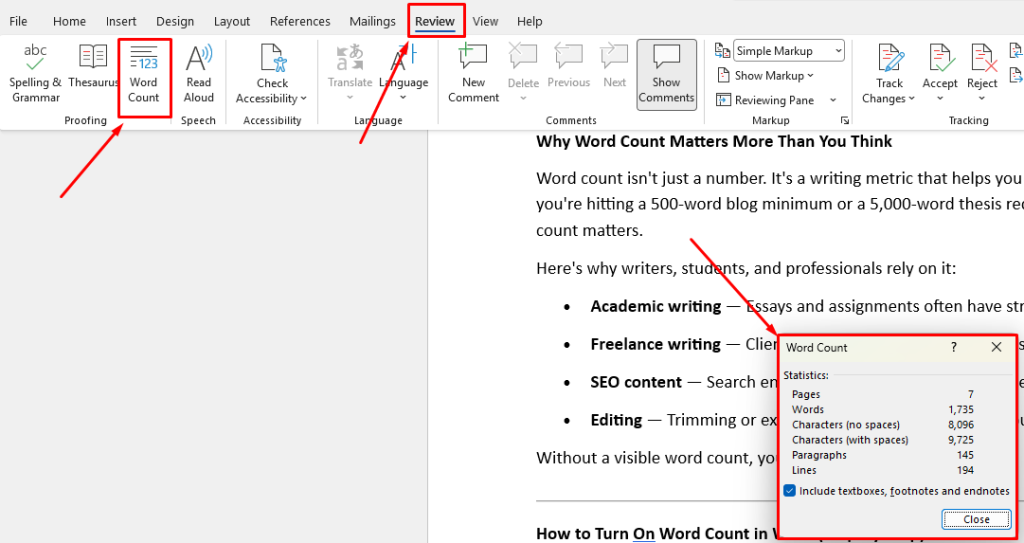
- Click the “Review” tab in the top menu bar.
- Click “Word Count” in the toolbar.
- A dialog box will appear showing your word count, character count, paragraph count, and more.
That’s it! However, this method only gives you a snapshot. It doesn’t update live as you type.
Method 2: Turn On the Live Word Count in the Status Bar
Want a running word count that updates as you type? Use the status bar at the bottom of your Word window.
- Right-click anywhere on the status bar (the gray bar at the very bottom of the screen).
- A menu will pop up with multiple options.
- Look for “Word Count” in the list.
- Click it to add a checkmark next to it.
Now you’ll see a live word count displayed at the bottom-left of your screen. It updates automatically as you write.
Pro Tip: If you select a specific section of text, the status bar will show the word count for just that selection. This is super helpful when editing individual paragraphs.
Method 3: Use a Keyboard Shortcut (Windows)
In a hurry? There’s a faster way.
- Press Ctrl + Shift + G on Windows to open the Word Count dialog box instantly.
This shortcut works in most versions of Microsoft Word on Windows. It brings up the full stats including words, characters, paragraphs, and lines.
How to Turn On Character Count in Word
Sometimes word count isn’t enough. You might need your character count in Word too — especially for social media captions, meta descriptions, or SMS content.
Using the Word Count Dialog Box
The same Word Count dialog box also shows character counts. Here’s how:
- Go to Review → Word Count.
- Look for “Characters (no spaces)” and “Characters (with spaces)” in the dialog.
- Both values are displayed together with your word count.
Character Count in the Status Bar
By default, the status bar doesn’t show character count. But you can add it the same way you added word count:
- Right-click the status bar at the bottom.
- Look for “Character Count” in the popup menu.
- Click to enable it.
Now both word and character counts appear live at the bottom of your screen.
Also Check: How To Turn On Word Count In Google Docs?
Word Count in Word: Common Issues & Fixes
Sometimes things don’t work as expected. Here are a few quick fixes.
Word Count Not Showing in Status Bar?
- Make sure the status bar is visible. Go to View → Status Bar to toggle it.
- Right-click the status bar and re-enable Word Count from the menu.
- Restart Word if the option seems unresponsive.
Word Count Seems Wrong?
- Text inside text boxes, headers, or footers may not be counted by default.
- In the Word Count dialog, check the box “Include textboxes, footnotes, and endnotes” for a more complete count.
Counting Words in a Specific Section?
- Simply highlight (select) the text you want to count.
- The status bar will instantly show the count for that selected text only.
Word Count in Word vs. Online Word Count Tools
Microsoft Word is powerful, but it’s not always available. Sometimes you’re working on a shared device, a Chromebook, or just a browser. That’s where online tools come in.
| Feature | Microsoft Word | Online Word Counter |
|---|---|---|
| Real-time count | ✅ Yes | ✅ Yes |
| Character count | ✅ Yes | ✅ Yes |
| No installation needed | ❌ No | ✅ Yes |
| Works on any device | ❌ No | ✅ Yes |
| Free to use | ❌ Paid | ✅ Free |
| Paragraph & sentence count | ✅ Yes | ✅ Yes |
As you can see, online tools are a strong alternative — especially for quick checks.
Try the Utilonix Word Counter
If you need a fast, reliable word count tool without opening Word, try the Utilonix Word Counter. It’s free, browser-based, and works instantly.
Simply paste your text, and it shows:
- Total word count
- Character count (with and without spaces)
- Sentence count
- Paragraph count
- Reading time estimate
It’s perfect for bloggers, students, content writers, and anyone who needs accurate counts on the go.
Practical Tips for Managing Word Count in Your Writing
Here are a few tips that professional writers swear by:
1. Set a Target Before You Start
Decide your word count goal before writing. It shapes how detailed or concise you need to be. A 500-word article calls for tight writing. A 2,000-word guide allows for depth and examples.
2. Don’t Count While Writing — Write First
Many writers check their count every few sentences. This disrupts your flow. Instead, write a full draft first. Then check the count and adjust.
3. Use Character Count for Social Media
Twitter/X limits posts to 280 characters. Meta descriptions should stay under 160. Instagram captions have a 2,200-character limit. Always check character count before publishing on social media.
4. Track Word Count Per Section
Long documents feel less overwhelming when you track word count per section. For instance, aim for 300 words per H2 section. This keeps your content balanced and readable.
How to Check Word Count in Word Online (Microsoft 365)
Using Word in a browser? Microsoft 365 also has a word count feature.
- Open your document in Word Online (via Office.com).
- Click “Review” in the top menu.
- Click “Word Count” to see your document’s stats.
Note: Word Online may not show a live count in the status bar like the desktop app. For continuous tracking, the desktop version is more reliable.
How to Check Word Count on Mobile (Word App)
Writing on your phone? Here’s how to check word count in the Microsoft Word mobile app:
On iPhone or Android:
- Open your document in the Word app.
- Tap the “Edit” icon (pencil icon).
- Tap the three-dot menu (more options).
- Select “Word Count” from the menu.
It shows the same stats as the desktop version — words, characters, paragraphs, and lines.
FAQ: How to Turn On Word Count in Word
How do I turn on word count in Microsoft Word?
Go to the Review tab and click Word Count. For a live count, right-click the status bar at the bottom of the screen and enable Word Count from the menu. It will then display automatically as you type.
How do I show character count in Word?
Open the Review → Word Count dialog to see character counts. Alternatively, right-click the status bar and enable Character Count to see it live at the bottom of your screen.
Why is my word count not showing in Word?
Right-click the status bar at the bottom of Word and make sure Word Count is checked. If it still doesn’t appear, try restarting Microsoft Word.
Does Word count words in headers and footers?
By default, Word does not include headers and footers in the word count. To include them, open the Word Count dialog and check the box labeled “Include textboxes, footnotes, and endnotes.”
What is the keyboard shortcut for word count in Word?
On Windows, press Ctrl + Shift + G to open the Word Count dialog instantly. There is no default shortcut on Mac, but you can assign one through Word’s keyboard settings.
Can I check word count without Microsoft Word?
Yes! You can use free online tools like the Utilonix Word Counter. Just paste your text and get instant word count, character count, and more — no installation required.
Conclusion: Track Your Words, Write with Confidence
Knowing how to turn on word count in Word is a small skill with a big impact. It keeps you on track, helps you meet requirements, and makes editing much easier.
To recap:
- Use the Review tab for a quick snapshot.
- Enable the status bar for a live, real-time word count.
- Use Ctrl + Shift + G on Windows for a fast keyboard shortcut.
- Check the Word Count dialog for character counts too.
And if you ever need a quick count without opening Word, the Utilonix Word Counter is always ready — free, fast, and works on any device.